help


FREE Digital Signage for everyone

Login to the Web Studio
Get Started, it's FREE


Live HD input / mediaTV

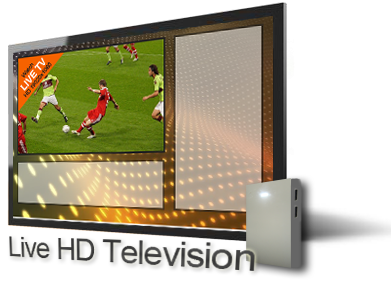
720p / 1080i full High Definition input

MediaSignage fully supports HD external  input using our own PCI-Express capture device and only on the Windows platform (Capture / Tuner live TV is not supported on Linux) . This allows you to connect Live signal from HDMI, composite, component and S-Video directly into your Signage presentation. The Live video feed is assigned to any screen division (zone) you choose. It supports full 1920x1080 High Definition interlace / free smooth playback.  The mediaTV Capture device is available in 2 versions, internal and external. The external is designed specifically for our mediaBOX while the external can be used with any standard PCI-Express compliant

computer. Again, if you own a mediaBOX, be sure to order the External version. The mediaTV capture device allows you to input an external device’s analog or digital input directly into your digital signage presentation and assign it to a specific screen division of your choice. The source can be any Audio / Video device such as DVD, Cable box, Set top box, Satellite dish, game console, camcorder, security camera, tablet and others. 

mediaTV capture performance

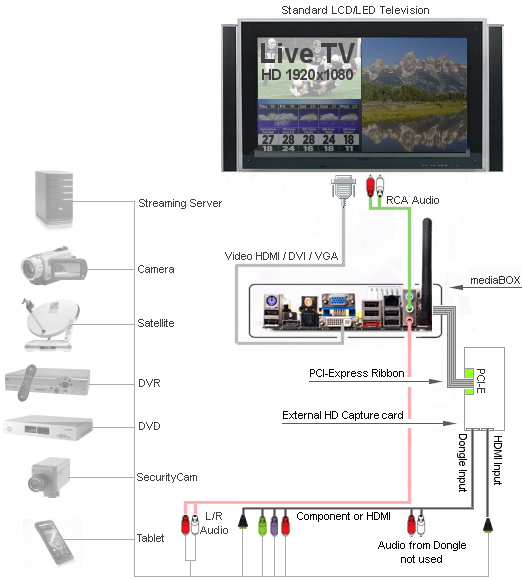
The mediaTV capture device is designed to pass all of the video information directly onto the PC video card thus bypassing the central processing unit. This special design offloads an processing from the CPU and provides a super smooth HD image right onto your digital signage presentation. The mediaTV does not have a built in tuner / decoder. This means that you will need to use an analog or digital A/V source such as an external DVD or cable box. If you wish to use Live TV from Cable or Satellite provider (i.e.: Direct TV / Dish Network) you will use the Cable / Satellite Set top box provided by them and connect the mediaTV using one of the available dongle ports (see diagram below). Selecting channels and controlling the volume is still done through the standard remote control that was supplied by Cable / Satellite provider.

mediaTV - Internal vs external

The mediaTV capture device is available in both internal and external versions. The internal capture device  uses a standard PCI Express interface and can be used with any standard PC running the SignagePlayer Desktop version. If you own a computer with a standard motherboard you must likely have multiple free PCI-E slots available and the mediaTV internal card is all you need for Live Capture / TV.
The mediaTV external version is designed specifically to work with our mediaBOX 100 / 200 / 300 Windows XP version. The mediaBOX XP version is already pre-configured to work this HD mediaTV so installation is a quick plug and play.

mediaTV - specifications

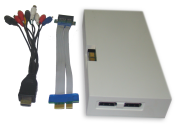
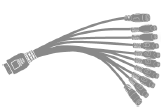
The mediaTV external / internal HD capture card is equipped with HDMI input and through the included Dongle Cable, users will have Component, S-Video and Composite Video input interfaces as well. This Allows users to connect to their Cable / Satellite Set-Top-Box, Gaming Console and HD Video recorders to capture High Definition and Analog video content on their PC. Great for Sports bars and other location that require HD quality inside any screen division. With the HD capable card you can run full screen in 1920x1080 or any 16:9 desired screen division size equipped with crystal clear high definition image.

PLEASE NOTE: Many HDMI devices come with a built in security protection protocol called HDCP. The protocol is designed to keep content from being transmitted over capture and other “ripping” capable devices. If your video  source transmission includes the HDCP protocol you may have to use Component instead of HDMI (Component is also known as RGB and YPbPr). Component resolution is also considered HD and normally transmits over a resolution of 720p and gives an Amazing HD picture quality.

- Features
 Turn analog video tapes into DVD or VCD formats
 Equipped with HDMI input
 Directly transfer to DVD/VCD burner from video recording
 Capture HD video up to 1080i
 Edit, organize and highlight video clips on storyboard
 Compatible with Windows 7
 Digital recording in MPEG 2, H.264 and iPod format
 
- Input Signal (HD)
 HDMI
 Component (YPbPr)
 Stereo L/R Audio

- Input Signal (Standard)
 S-Video
 Composite
 Stereo L/R Audio
 

- System Requirements
 mediaTV External version: mediaBOX running Windows only
 mediaTV Internal version: see below:
 HD Input (HDMI / YPbPr)
 Intel® Core™ 2 Duo E6600 2.4GHz or Equivalent AMD CPU
 Windows XP or above
 1GB RAM or above
 VGA card with 128MB memory supports DirectX 9.0c or above
 200MB Hard Drive space
 Sound Card
 

- Package includes
 AVerTV HD DVR (Model # C027)
 10-in-1 Dongle Cable
 Mini-Jack to Composite
 Low Profile Bracket
 Installations CD (no need for it in mediaBOX since already pre-configured)
 Quick Guide


capInpMS

10-1 dongle supplied

support direct HDMI

connection
[ENLARGE]

mediaTV on mediaBOX [ENLARGE]

Physical connection. How do I connect the mediaTV capture device?

The following diagram demonstrates the physical connection between the mediaBOX, LCD / LED screen (standard television) and the mediaTV Capture device. Be sure to connect the Audio to the TV using the supplied  mini-jack to composite cable. You will connect the back panel / pink audio output connector from the motherboard to the TV using the supplied component (RCA) (Red/White) cable. If you are use HDMI (which also carries sound with it) you should set the TV to disable the HDMI sound input and receive its sound through the composite analog input instead. You can also use VGA or DVI which eliminates the need to disable the HDMI digital audio on the TV set.


What about using other Capture devices instead of the mediaTV?

The SignagePlayer Desktop version uses the application by AverMedia called Aver MediaCenter to achieve superb GPU accelerated HD picture quality of capture of Live TV. Please note that as of current release we only support the Windows platform (XP / Vista / 7) for Live Capture / Tuner card. This means that you can choose any Aver MediaCenter compatible device for your SignagePlayer. You don’t necessarily have to use the mediaTV device. In fact, you can order directly from Amazon, NewEgg or other online retailers; any Aver MediaCenter compatible device and it will work perfectly fine as a capture device for real time Live TV, embedded inside your Digital Signage presentation.

Some of the compatible devices include the AVerTV HD DVR which does full 1920x1080 High definition. You can get the External or internal version of AVerTV HD which we call mediaTV.
Only the External version if compatible with the mediaBOX XPe version.

Capture / Tuner devices for Windows


Card type

mediaBOX compatible

HD

Connection

Inputs

mediaTV External
best for mediaBOX


PCI-E
external

S-Video - Composite Component - HDMI

AverTV HD DVR
same as mediaTV


PCI-E
internal

S-Video - Composite Component - HDMI

AVerTVHD Volar MAX


USB

Tuner Card

AVerTV Volar AX


USB

Tuner Card - S-Video - Composite

AVerTV Bravo
Hybrid PCI-E


PCI-E
external

Tuner Card -
S-Video - Composite 

AVerTV Volar Video Capture


USB

Tuner Card -
S-Video - Composite 

Aver MediaCenter Application

Configuring the SignagePlayer Desktop version through the SignageStudio is as easy as selecting Aver MediaCenter from the drop down box of the ExtApp component. After you select it, remember to install the latest AverMedia device drivers and the Aver MediaCenter application in your Signage Player computer.

Our mediaBOX already ships pre-installed and configured with the Aver MediaCenter.

SignageStudio Aver MediaCenter Config

Checkout the video tutorial

Watch the video tutorial below so you have a better in depth understanding of this configuration.

The video tutorial covers everything from the SignageStudio setup process, which capture device to purchase as well as the physical installation. Now it doesn’t get any easier than that,, let us walk you step by step!

playCapTV


vlinefooter

vlinefooter

vlinefooter


more stuff

stay in touch

legal

about

live examples

blog

privacy policy

customers

cloud vs server

forum

end user license

who we are

comparison

follow on twitter

enterprise agreement

email

returns / warranty

live supports

 
 © 2006-2012, MediaSignage Inc.